Learn Zillion: Learning without limits

What it is:  Today I learned about a resource called Learn Zillion in a Skype conversation with Sam Schillace, creator of Google Docs.  Learn Zillion has a tagline that resonates with me: Learning Without Limits.  This is why I love technology, it enables learning without limits.  One of the things I have dreamed about, is a world where the very best teachers around the world could be connected with the students that need them.  Learn Zillion does just that through asynchronous video lessons organized by the Common Core Standards.  Learn Zillion was started by E.L. Haynes public charter school who had a passion for sharing best practices across classrooms and to connect students with just the right lesson, at just the right time.  The site started small and grew along with the passion that every child should have access to incredible teachers and resources.  Learn Zillion is now a place where teachers can learn by “sitting in” on other teacher’s lessons, and students can get a playlist of lessons that meet their needs.  Pretty awesome!
How to integrate Learn Zillion into the classroom: It has always bothered me that I only had access to the teachers I had access to.  Let me explain that a little: I had some really incredible teachers growing up; my first, third, and fifth grade teachers were beyond exceptional.  I think about them often and model my own teaching based on what they did.  I had an incredible creative writing teacher in high school.  I had an Algebra teacher who made me believe that I was a gifted math student (I’m average at best).  I also had years with so-so teachers, teachers who didn’t really inspire the best in me.  That is not to say that another student didn’t connect with them and remember them years later.  It always irked me that I didn’t get to pick ANY teacher in the world to be my teacher.  I knew that there were amazing teachers out there, why didn’t I get to learn from them?  Would my education have been different if I was matched up with the very best teachers in the world?
Learn Zillion is the first step in this direction.  It may not be the rich experience you get from clicking with someone on a personal level AND learning from them, but does give students the ability to learn a concept in a new way from a teacher who may “click” with them educationally differently than you can.  Sometimes it is just a matter of being able to pause, rewind and repeat a concept at will that makes all the difference.  With class sizes that are growing out of control, the ability to work one on one with students is diminishing quickly.  Learn Zillion allows every child to enter their learning at the right level, it is available on demand (day or night), it utilized fantastic educators from around the world, and it helps teachers create custom playlists of learning for students.  Using this technology, students can get the extra support they need with foundational concepts.
Learn Zillion would make a fantastic support center in the classroom.  Students can visit the center to find out where they are in their personal learning journey, watch videos and practice new skills and concepts.  Because the videos are based on Common Core Standards, your students will get extra support for the foundational skills that support additional learning.
Learn Zillion is a nice resource in a “flipped” classroom where homework looks a lot more like preparation for practice that happens in the classroom.  Students can watch the preparation video at home and come to class prepared to practice and explore using the new knowledge.  The great thing about a flipped classroom is the ability to offer students support where and when they need it-in the practice and honing of skills.

Tips: I’m impressed with the quality and organization of Learn Zillion.  Be sure to take some time to explore some lessons and dream up how you might use it with your students or even as a learning tool for yourself.

Please leave a comment and share how you are using Learn Zillion in  your classroom!

Dreaming: A look at Anastasis Academy

You may be wondering (or not) where the daily posts have been lately.  Believe me, it isn’t for lack of tools to share!  The slowness here is directly related to the time I am spending starting a school…as it turns out it is quite a bit of work! 😉  If you are a reader of all of my blogs, you have already seen this one, but for those of you who only follow me here, I thought I would give you a peek into the school I started this year.

Below, I share a picture of an incredible morning we had at Anastasis Academy where we welcomed singer/song writer Matthew West to join us for our morning devotion…we had NO idea it would result in the incredible private concert that it did.  What an enormous blessing to have Matthew share his time, creativity and passion with us.  Check out video of the morning on our school blog Stand Again.

|Kelly Tenkely|

It’s a pretty incredible thing to see dreams come to fruition.

For me it started with an obsession and passion for creating rich learning environments where every student was recognized as an individual. In that first post I wrote:

“I have a dreams of education. I have dreams of the way that schools should look. I have dreams of kids who find their passions. I have dreams of schools as rich learning centers.”

I had dreams of stripping the “vanilla” away so that passions could emerge.

Dreams of ditching that boxed curriculum that we call an education and watching the factory model fade into the rear-view mirror.

Dreams of ending the practice of viewing teachers (and students) as expendables.

I had dreams of schools that were beautiful, that were designed with students in mind.

Dreams that education would stop looking so much like the McRib.

Dreams of breaking free of the box, of valuing students and teachers,  of using the right tools, of a school where a student’s inner da Vinci can break through, of a school that customizes learning.

I shared dreams of more fabulous failures.

The dreams started trickling into reality in March of this year (2011).  In March I started getting some hints that these dreams weren’t really all that far-fetched.  By May I had officially started a school.  In August we opened the doors to Anastasis Academy with our first 50 students in 1st through 8th grade and had hired a dream team of 5 truly incredible teachers to lead them.  In four short months we went from dreams to reality.

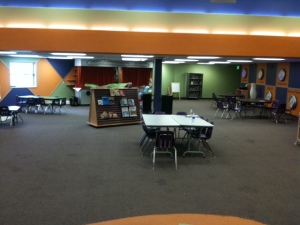
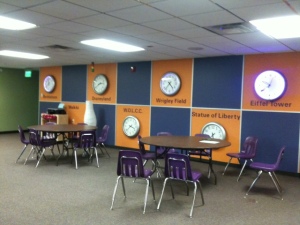
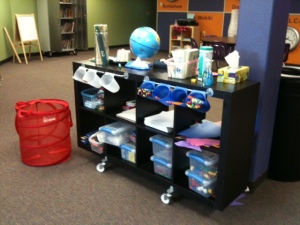
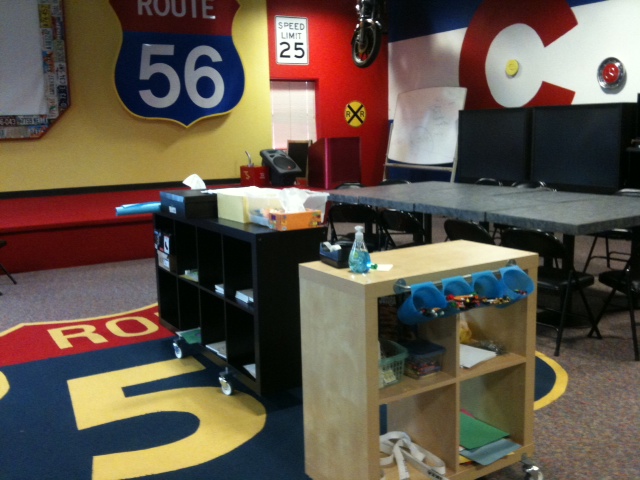
At Anastasis Academy, we lease space from a church building throughout the week.  We have our own wing with classrooms, a playground, a gym and a kitchen.  All of our furniture is on wheels.  This makes it easy to adjust space daily based on needs, it is also a necessity since we use shared space.  Twice a week we move all of our belongings across the hall into a storage room (if I’m honest, this is the part we could do without!).  We can’t complain about the space.  It is pretty incredible!

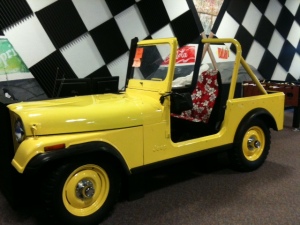
You will notice that we don’t have rows of desks.  No teacher’s desk either.  We have space that kids can move in. Corners to hide in, stages to act on, floors to spread out on, cars to read in.  We are learning how to learn together, learning how to respect other children’s space and needs, learning how to discipline ourselves when we need to, learning how to work collaboratively, we are learning to be the best us.


You won’t see a worksheet at Anastasis. We use iPads.  That isn’t to say that we ONLY use iPads, in fact, you’ll often see us building, cutting, pasting, writing on a whiteboard/chalkboard and even paper.  We do a lot of blogging, a lot of reflecting, a lot of Evernotting, a lot of cinematography, a lot of discussing.
Every morning we start with a 15 minute walk outside together…as a community.  We invite parents and siblings to be a part of our morning walk. Occasionally we have the dogs join in on the fun.  After the walk we come inside as a whole-school for a time of devotions. Again, this is a time for us to build community, to foster the culture we want for our school.  Families are invited to join us every morning.  We always have at least one family and, many times, multiples.  We pray with each other and for each other. We have hard conversations and funny conversations. We think together and challenge each other.

Matthew West joining us for devotions!

Our inquiry block is a time for hands-on transdisciplinary learning.  This is my VERY favorite time to walk through classrooms.  It is incredible to see the joy in discovery.  It is incredible to have a second grade student with dyslexia discover an app to make stop motion animations, teach himself how to use it and proceed to stand up before 7th and 8th grade students to explain how stop motion works.  I wish I could bring you all through the building during this time.  Every time we have a visitor the students pause long enough to describe what they are doing, the learning that is happening. I often have to pick my jaw up off the floor. These kids are amazing.


We have no curriculum. At all. Zip. What did we do instead? We hired the very BEST teachers we could find.  We gave them a base level of skills that we wanted students to have- an outline if you will.  We used the Common Core Standards as our baseline.  We don’t use the standards like most schools do. We use them to make sure that our students have the building blocks and foundations of learning in place.  And then we let our students and teachers GO. The standards are not a weight we are tied to, they are the underpinnings that make it possible for us to soar and take our learning anywhere.  When you look at the Common Core standards they are pretty underwhelming.  I’m glad they are! They provide us with just enough momentum to propel us forward and then off we go on a journey of learning!  We also have our big inquiry questions in place.  From there, we go where the learning takes us, bunny trails and all.  It is pretty fantastic.  Today one of our primary students came out to see me and said, “Look at this boat I found in this new library book. Can I try to make it?”  My answer: “Absolutely! What materials do we need?”  Together we made a list of all the materials I needed to pull together for him.  Tomorrow he will build that boat he is fascinated with and find out if it works the way he has planned.  That is learning!  Tell me what boxed curriculum allows time for that to happen? None. That is why we don’t have it.
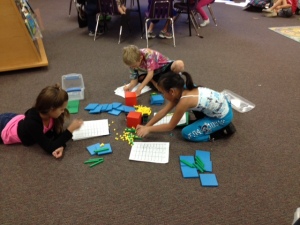
In the afternoons we have more “content” area subjects (i.e. math and language arts).  In the primary grades this means students building the skills they need to support their inquiry.  In the intermediate grades this means honing those skills for better communication and more thorough inquiry.  Again, we don’t work from a boxed curriculum. We find the lessons, approaches, and materials that work for the individual student.  Sometimes this means working with manipulatives, sometimes it means exploring measurement outside, and sometimes it means using an app.  It changes daily based on the needs of the students.
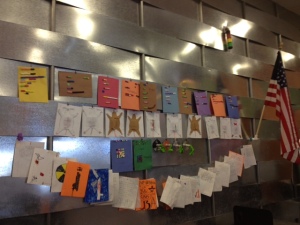
We have mixed age level classrooms.  We do this for a lot of reasons.  Most importantly, it is good for older and younger students to work together and learn from each other; it is vital that a child be able to work at their developmental level and progress as they are ready to; and it deepens inquiry when students with different perspectives work together.

Once every five weeks we invite the parents to join us for Parent University.  This is a time for us to help parents understand this new way to do school.  Detox, if you will.  It is a time for us to show parents what best practices in education look like, why grades aren’t all they are cracked up to be, why play is important.  It is a time for us to think and laugh together. It is a time to get questions answered.

Also every five weeks, we hold a “Meeting of the Minds”.  This is a parent/teacher/student conference where we all get together and set our road map for the next 5 weeks.  Students write goals with the help of their teacher. They have ownership over what they have done the last 5 weeks and tell mom and dad what they have planned for upcoming 5 weeks.

Every Friday we have a learning excursion or an opportunity for an “Anastasis Serves”.  Learning excursions are field trips all over the place that help students start to recognize that learning doesn’t just happen when we are at school.  Learning happens everywhere we are and, if we are paying attention, all the time.  Anastasis Serves is a time for our students to give back to the global community.  Sometimes this is a door-to-door scavenger hunt for donations, sometimes this is learning about orphans around the world, or packaging cookies and letters to send to our troops.

We don’t do grades, we do assessment all day every day while we learn.  We don’t do homework, we pursue our families and passions at home.  We don’t do worksheets, we do interesting (sometimes frustrating) work. We don’t do boxed curriculum, we do on-demand learning.

We do mistakes. We do community. We do collaboration. We do messy. We do play. We do fun. We do technology. We do learning.

How do we do all this? We have a 12 to 1 student teacher ratio (or less).  We have incredible students, parents and teachers.  We have stinking smart board members who are invested in our success and trust our judgement calls.  We set our tuition at $8,000 (per pupil spending in our district) to show that even though we are private, this can be done in the public schools.  We started with nothing…well almost nothing, we had dreams.  There was no capital raised, no fund-raisers, no huge donation. We started the beginning of the year at $0 and put blood, sweat and tears into it.

This is not to say that we have it all figured out, that all of our students are perfect, that all of our staff or families are perfect. We are perfectly imperfect as every school is. We have days when the kids are BOUNCING off the walls, we have disagreements, tired teachers, stressed parents, a founder who has occasional melt downs (that would be me), students who need extra love and support, tight budgets, parents who demand different, scuffles, sniffles and band-aids…lots of band-aids.  There is nowhere else I would rather be. No other group of people I would rather work with. No other students whose germs I would rather share. This is my dream.

There are moments throughout the day when I am stopped in my tracks by the realization-this is my dream.

1-to-1 iPad ePortfolio solution

Today @j_allen asked how we handled eportfolio’s at Anastasis Academy.  The 140 characters of Twitter felt a little too limiting to explain the hows and whys of what we do…bring on the blog post!

Anastasis has a one-to-one iPad program.  Our students own their iPads in a modified BYOD (bring your own device) setup.  I say modified because we requested what device they brought.  The iPad was the ONLY supply on our supply list. Anastasis supplies all other materials (pencils, papers, crayons, markers, paint, glue, etc.).  This has been a fantastic setup for us.  Families are in charge of keeping the iPads in working order, synced with the student iTunes account and charged for class.  We made the decision not to own the iPads as a school to keep costs low for technical support, replacement of broken or out-dated devices and so that our students could take ownership over their own devices.  Students can add any apps to the iPad at home using their own iTunes account.  As a school, we purchase curricular and productivity apps for students.  Students download these apps using redeem codes so that they can stay signed into their own iTunes account.

Anastasis has 60 students in 1st through 8th grade.  At the beginning of the school year, we sent home a list of recommended restrictions for parents to set up on student iPads.  We taught families how to enable parent restrictions on the Internet, movie/app/song ratings, and how to block in app purchases.  We asked all parents to restrict student access to Safari.  At school, we downloaded the MobiCip app to every iPad so that we could filter the Internet.  MobiCip allows us to set up broad category filters based on age. A premium MobiCip account lets us filter exactly what we want to and allow those sites we want to.  (For those who are wondering our students do have access to YouTube.) 🙂

I digress…the question was about ePortfolios.

We use a combination of Evernote, Edu 2.0 and Edublogs to keep and share our work.  Evernote has been a fantastic app for our students.  Students can record text, images, and audio directly in Evernote.  Each note can be emailed to teachers and parents.  A link can also be generated for each note making them easy to share on blogs.  Better yet? There are SO many apps that have the ability to share with Evernote.  Very handy.  Students do quite a bit of writing directly in Evernote.  This is a good place for all of student writing (even those pieces they don’t want to, or aren’t ready to, share).  Evernote makes it easy to organize all of their notes into notebooks (the learning curve here is teaching students to use some organization).  The ability to record audio and take pictures of their work in Evernote is great.  This means that students can capture learning that isn’t natively digital-digitally.  All of those awesome inquiry projects that they construct and build can be captured and reflected on in Evernote.  Another HUGE benefit to the Evernote/iPad combo: it goes with them everywhere.  Recording learning on a field trip? Check. Recording learning at home? Check. Recording learning on the fly? Check. Teachers often send students a PDF instructions for an assignment or a picture to the student’s Evernote account. Parents can login to their child’s Evernote account from any computer or iDevice to see what they are working on.

Edu 2.0 is our education portal.  In Edu 2.0 we can share things as a school community.  Edu 2.0 has a built in e-portfolio (we don’t often use this), a blog, a post feed, calendar, and message system.  Edu 2.0 makes it easy for us to stay connected as a school community.  Because we teach young students, this “walled” community is a safe place for students to share any, and all, of their work and thoughts.  Students often write blog posts in Edu 2.0 about their learning.  Other students, parents and teachers can comment on the Edu 2.0 blog posts.  Teachers use Edu 2.0 to send students assignments, make class announcements and communicate quickly with parents in their classroom.  Students can link any content from their Evernote account to their blog in Edu 2.0 to share it with other students, parents or teachers.  The school calendar is updated with all birthdays, learning excursions and school events so that students, parents and teachers are always up-to-date.  The live post feed makes it easy for teachers and administration to make school-wide announcements.  This feed shows up on the home page of every student, parent and teacher.

Each of our teachers has a class Edublog.  This is where the teachers write blog posts about the happenings in their classrooms.  Students can also contribute to the class blogs to get input and comments from a global audience.  The Edublog is the place for interaction and collaboration with the world.

We have a school YouTube account where students can upload videos and stop motion animations.  The school account has become a nice central place for students to share their work with the world.  I act as administrator on the YouTube channel so that I can moderate comments and videos.  Students can easily link to, or embed, videos they have created in Evernote, on their Edu 2.0 blog or on Edublogs.

This combination of tools has worked well as an ePortfolio for student work. I love that at the end of the school year students have ALL of their work with them.  Because they own their iPads, the Evernote content goes with them.  Even without the iPad, students can access their Evernote account from anywhere and continue using it.

Do you have a one to one program?  I would love to hear your solutions for an ePortfolio!

Presenting Learning with Stop Motion Animation

What it is:  At Anastasis Academy, we have some Stop Motion Animation PROS in the form of an eight year and ten-year old boy.  These brothers taught themselves how to use stop motion animation, proceeded to create several learning videos (without assistance from a teacher) and, if that wasn’t enough, went on to teach the rest of our students how to do it!  Incredible.  Nothing like starting the day with a little viral learning!  Today these two young boys stood before our junior high students (twelve to fourteen year olds) and taught them how to make a stop motion animation video.  The young boys are SO proud of their accomplishment and were incredibly articulate as they taught the older kids about stop motion, the programs that can be used for stop motion and talked about technique.  The older students followed along as the boys led them step-by-step through creating their own short stop motion video with a pencil or shoe.  The ten-year old then issued the jr. high a challenge: Create a stop motion video before the end of the school day to show me, I’ll give you tips on what you can improve on.  Above is one of the jr. high created videos that was presented.  It was incredible to stand back and watch kids teaching and leading kids this way.  The age difference was no barrier today!

Today, our students used the iMotion HD app on the iPad to create their stop motion animations.  This FREE app is powerful in the hands of creative kids!  The brothers have been using stop motion regularly to reflect on, or display learning.

The older of the two brother’s started learning stop motion using SMA (Stop Motion Animator) this is a free program that works using a PC, webcam and a whole-lotta (technical term) imagination.

For the Linux crowd, there is the free Stop Motion.

For the Mac crowd (cheers), there is the free Jelly Cam.

How to integrate Stop Motion into the classroom:  Stop Motion is a great way for students to create their own animated videos.  Students can use stop motion to display learning, as a way to reflect on learning, to tell a story, to demonstrate a time-lapse of a scientific process or just as a creative outlet.  Stop motion requires students to do some pre-planning.  First students have to decide what story they are trying to tell, next they have to decide how they are going to demonstrate that story visually, finally they need to move an “actor” frame by frame through the scene.  The results are pretty incredible (as you can see above).

Tips:Some tips from our Stop Motion PROS: Make sure not to move your actor too far each time or the end result will be choppy, make sure to move your hand out of the shot before snapping the picture, plan through your story BEFORE you start.

Check out our YouTube channel for more stop motion animation from our students.  The Bones, Gnome.Eaten.By.Jaws, and Anastasis Academy videos were all created by the 8-year-old! (P.S. The kids LOVE comments on their videos!)

This, my friends, is what happens when you give kids room to learn!  Onward.

Please leave a comment and share how you are using Stop Motion Animation in  your classroom!

Mastery Connect: Standards Based Grading made manageable

What it is: Mastery Connect is both an online standards tracking tool (parts of it are free) and a free iPhone/iPod/iPad app.  Because the app is truly free, I’ll start with it.  The Mastery Connect app is a handy way to keep the Common Core standards accessible while you teach.  The app sorts the common core standards by grade level, subject and strand.  This is REALLY nice for quickly locating and referencing standards.  Mastery Connect the website is the real gem.  The site is brilliantly designed, easy to navigate, aesthetically pleasing and best of all, it works the way you think it should.  With the Mastery Connect Master Tracker, teachers can assess core standards, monitor student performance and report student progress to parents and administrators.  Master Tracker makes formative assessment that is standards based manageable to keep track of.  Rearrange standards in the Master Tracker based on the order that you teach them in.  View only the standards you are currently assessing, and view the entire standard as a pop-up.  Within Mastery Connect, teachers can create and share common assessments.  Similar in feel to other social networks, Mastery Connect lets you connect with other educators to share assessments, interact and offer each other support.  It is easy to expand your PLN into the space, just find teachers with similar interests and goals and start sharing!

And now for my VERY favorite part- bubble sheet scoring. Mastery Connect uses GradeCam technology to make assessment about as quick as it could be.  Just hold up bubble sheets to your webcam or a document cam and it is instantly scored and entered into the Master Tracker associated with the student it belongs to and the standard it is addressing.  Seriously cool.  I am not a big fan of multiple choice testing (mostly because I think it is a lazy way to find out what a student knows and doesn’t give a true picture of what a student knows or can do) but I think I have figured out how bubble sheets can be used by teachers during formative assessment.  Students get immediate feedback from Mastery Connect and can see where in the standards they need some extra work.  Teachers can view class wide item analysis of assessment and can track progress by standard.

Students can also use iDevices (iPad/iPodTouch) with the bubble sheet app.  This is connected to Master Tracker so as soon as students input answers, it shows up live.  Are you feeling your assessment work-load lighten yet?

Students can also take assessments using any web browser.  It really is a tool that works for schools with minimal tech, to schools that have ubiquitous tech.

Mastery Connect exports to ANY gradebook or student information system.  A one touch export feature makes it about as quick as it could be!

Mastery Connect makes it quick and easy to keep parents informed of student progress.  Student reports can be quickly created and emailed or printed out for parents.  You can also enable parent notifications that will notify parents of student progress as it is entered.

How to integrate Mastery Connect into the classroom: Mastery Connect is actually the tracking tool we will be using at the school I am starting, Anastasis Academy.  We are doing away with traditional A, B, C, D, F grades all together.  I have yet to be convinced that traditional grading is productive and helpful for students (or teachers for that matter).

At Anastasis Academy, we are using the Common Core Standards as a framework for setting learning goals.  I see these standards as the critical-mass-of-knowledge that students need to be successful in learning.  Hear me say, I DO NOT believe that these standards are comprehensive of everything a child should, or wants to know.  They are simply the framework that we will use to build the rest of learning around.  They will help us to ensure that we have a rough road map of where we are headed in learning.  Students, teachers and parents will sit down for a conference each block and use those Common Core Standards to help map out learning goals.  You will notice that we don’t leave this up to teachers alone.  We want our students to have ownership and a say in what their learning looks like.  We don’t want the teacher to be the holder of all the keys, slowly revealing learning to students as they see fit.  Instead, we want students who can look at the learning ahead of them, and offer input about how they would like to go about that learning with parents and teachers acting as guide.  The Mastery Connect app will be SO helpful in this process.  Everyone will be able to access those standards easily at any time they need to recall them.  Brilliant.

We will use Mastery Connect a little differently than I’m sure most schools will.  Instead of bombarding students with multiple choice “bubble” quizzes and assignments, our bubble sheets will be for teacher use.  For example, we may create a bubble sheet based on a standard with the specific skills or content that we are looking for.  As we formatively assess students, the teacher can fill in that bubble sheet either on paper or on the iPad for instant input into Master Tracker.

Tips: I have been extremely impressed with all of the Mastery Connect tools.  Not all of it is free but the portion that is not free is very affordable ($4/student/year).  I like that Mastery Connect offers parent, teacher and student all of the information and tools they need to understand where they are and how they are learning.  The people at Mastery Connect have been dynamite, they are helpful, flexible and friendly!

Please leave a comment and share how you are using Mastery Connect  in your classroom!

Current.im: a private daily journal 140 characters at a time

What it is: Current.im is a site I learned about from @MZimmer557 on his excellent blog, The Weekly Pursuit of Technology Integration HappinessCurrent.im let’s students keep a private online journal 140 characters each day.  The journal couldn’t be easier to use, students login with a username and password that they create, and type their 140 characters for the day.  Current.im keeps a daily record of these bits of writing along with a time stamp.  The Current.im is truly private, this isn’t a social sharing site where students (or teachers) are writing for an audience.  It is a wonderfully simple tool created for one thing: recording daily thoughts.

How to integrate Current.im into the classroom: Current.im is an easy way to record writing daily.  The limit is 140 characters making it easy to keep up with and add to everyday without being overwhelmed by the blank sheet of paper.  Current.im can be used as a journal where students reflect on daily learning, a year-long creative writing project that students add to 140 characters at a time each day or a personal journal.  Because students are only responsible for 140 characters a day, this is a fast activity that could be completed as a center on classroom computers.  If your students don’t have access to computers where they can keep their own Current.im accounts, keep a class journal/story/reflection by compiling thoughts together using an interactive whiteboard or projector-connected computer.

One of my favorite year-long projects in the computer lab was having students take a picture of themselves using PhotoBooth every computer class.  At the end of the year, students took all of their pictures and created a stop-motion type video combining all of the pictures into a movie.  The result was a short movie where they could see themselves grow up that school year.  Current.im would be a fantastic addition to this project.  Students could start each class period with a picture of themselves and a quick 140 character update to go with the picture.  At the end of the year not only will they be able to see their growth, they will be able to read reflections and thoughts they had throughout the year.  This is great for one school year but can you imagine doing this EVERY year of school from k-12 as part of a digital portfolio?  How neat would that be?!  This is truly a 2 min. time commitment each day.  Easy.

As a teacher, Current.im can be used to reflect on teaching practice, to record daily classroom (or student) observations or to record daily success (we all need to record those!).  I always joked that I should write a book about funny student antics.  Of course I never wrote all of these funny stories down so alas, I have no book.  Had I known about Current.im, I could have recorded these stories everyday and had the book written for me by the end of the year!

Tips: Current.im doesn’t include any terms of service so I assume it is okay for all students to use.  Registration for an account does require an email address.  The email address doesn’t need to be confirmed so if you have students without email addresses, they can use an @tempinbox or @mailinator account (just add tempinbox or mailiator to the end of any word to instantly create an account).

Please leave a comment and share how you are using  Current.im in your classroom!

Using Angry Birds to teach math, history and science

This post has been generously sponsored by iTutorMaths – GCSE Maths Tutors in the UK

Yesterday instead of dutifully writing a blog post, I was having fun building catapults with kids.  I was playing with a transdisciplinary lesson using Angry Birds as my inspiration.  Yes, you read correctly-Angry Birds.

It doesn’t seem to matter what age group or demographic that I talk to, kids (and adults) everywhere are fans of Angry Birds. As I was playing around with Angry Birds (yep I’m a fan too), I started thinking about all of the learning that could be happening.  I have watched a two year old tell an older sister that “you have to pull down to go up higher”.  I have watched as kids master this game through trial and error.  Being the teacher that I am, I started dreaming up a transdisciplinary lesson with Angry Birds as the base.

I happened to be writing an inquiry lesson that has students look at inventions throughout time and thought: the catapult-that is an invention that has technology and concepts that are used even today.  This is one of those inspirational moments that comes when you are drifting off to sleep and has you frantically searching for paper and pen to record as fast as the ideas come.  So what did I do? I got myself out of bed and went to work sketching out a super awesome plan.

Here is the embedded learning that I came up with:

  • Primary Math: positional math language (above, below, left, right, bottom, biggest, smallest), measurement (distance), angles, shapes
  • Intermediate Math: parabolas, velocity, angels, trajectory, acceleration, quadratic formulas
  • Science: simple machines (lever), mechanics, force, energy, velocity/speed
  • History: history of the catapult, changes made to catapult technology throughout history, modern-day inventions that use this technology
  • Music: Tie in with history, what music was popular in the middle ages when catapults were invented (give students a feel for the culture of the time).
  • Art: Tie in with history, what era of art was happening during the middle ages when catapults were invented (give students a feel for the culture of the time).
  • Language Arts: reflection writing, reading text for information (non-fiction books and websites)
  • Learning: application of Angry Birds on students as learners, application of building a catapult on students as learners (I can’t claim this one it was all @stumpteacher with this blog post).

I set up 3 stations of learning and exploration.   In the first station students found Angry Birds on the iPads (now also available on the Internet in Chrome here), guiding questions, sticky notes and books on the history of catapults and simple machines.  Guiding questions were on chart paper and invited kids to join in the question asking by jotting down their own “wonders” on sticky notes and adding them to the chart questions.  At this station students “tested” Angry Birds and were asked to consider energy, force, acceleration, speed, angle and distance as they played.  Kids had fun with this, I anticipated that they would stick strictly to the  iPad and Angry birds but all of the kids looked through the books at some point.  There was a lot of talk about strategy, what they noticed about angle and how far to pull back on the different levels to get the bird to reach the target.

At Station 2 students found random materials that they could use to build their own catapult.  We included small blocks of wood, duct tape, string, rubber bands, paper clips, plastic cups, smaller dixie cups, paint stir sticks, popsicle sticks, plastic silverware,  markers, empty toilet paper rolls, clothes pins and of course the marshmallow to launch.  Students colored their marshmallow with sharpies to look like an Angry Bird (if doing this with kindergarten, be sure to mention that as soon as the marshmallow is colored, it is no longer food…we had a couple who were begging to eat the colored mallow!).  Next, students went to work constructing their catapults.  We offered no instructions and just let them go to town.  There was a lot of trial and error but all of the kids (kindergarten through eighth grade) made working catapults.  Students tested their catapult and experimented with speed, distance, accuracy, fulcrum, angle and force.  After launching the marshmallow bird they measured for distance and recorded.

As students tested we asked them:

  • What makes the catapult more accurate?
  • What makes the bird go the furthest?
  • Does mass affect the results?
  • How do objects move?
  • How do we calculate motion?
  • What is acceleration?
  • What is speed?
  • What are some forces that act on objects in motion?
  • How did the catapult set the marshmallow in motion?
  • Which challenge did your catapult meet best, accuracy or distance?
  • What helped the catapult?
  • What kind of energy did your catapult use?
  • What kind of force?
  • What are other kinds of levers?
  • What are simple machines?
  • What happens when the arm of a lever is shortened or the load is moved?
  • What happens to the force needed to make the load move?
  • What happens when you move the fulcrum?
  • What is the relationship between force and distance?
  • What happens when you adjust the angle?

Students had a fantastic time learning through trial and error and working together to reach our pig targets.  The collaboration among students was neat to watch, students would give each other ideas for fine-tuning the catapults to improve results.

In the third station, students had the opportunity to reflect on what they learned.  We asked them to reflect literally and figuratively.  Literally what did you learn about how a simple machine works, parabolas, measurement, etc.  What did you learn about catapults and how the technology is used today?  Then we asked them to think about the activity figuratively, what can Angry Birds teach them about life? What can it teach them about the learning process?


Older students looked at the math and science behind Angry Birds, using screen shots to determine if a bird would make it to the pigs based on parabolas.

Younger students labeled their catapult diagram with the language they learned about simple machines, force, and motion.  Students also labeled the Angry Birds diagram.

To wrap up we discussed the middle ages as a class and went through some of the texts together.  We read the history of the catapult and talked about why it was a necessary invention.  We connected all of this with how the technology is currently being used on air craft carriers (the boys really got into that discussion).

Who knew you could learn so much from a game of Angry Birds?

Here are some of the resources that we used during this lesson:

Projectile Motion simulation

Angry Birds Pig Target

Catapult guide for students

Myth Busters YouTube clip of tree catapult

The Physics of Angry Birds

Angry Birds Geogebra

NASA Clickable Spacesuit

What it is: NASA has the COOLEST interactives, this Clickable Spacesuit is no exception.  Before students explore the spacesuit itself, they can view a slideshow about spacesuits.  The Clickable Spacesuit lets students click on individual parts of the suit to learn more information.  Students learn all about the individual parts of the spacesuit and get up-close pictures of the part.

How to integrate NASA Clickable Spacesuit into the classroom: Students (especially young students) are fascinated with astronauts and space.  NASA’s Clickable Spacesuit will let them dig in and explore how the spacesuit works piece-by-piece.  The text of the site is a little advanced for primary elementary students but would be appropriate as a guided whole class activity using an interactive whiteboard or projector-connected computer.

Ask older students to brainstorm and identify items that have been inspired by spacesuit technology (think extreme outer wear, sleeping bags, emergency equipment, etc.).  Students can also brainstorm why each part of the suit has been designed the way it has, what does it tell us about space?

Tips: Use NASA Clickable Spacesuit to expand on other sites where students can learn about space.

Please leave a comment and share how you are using  NASA Clickable Spacesuit in your classroom!

Tiki-Toki: Create gorgeous multimedia timelines

What it is: Tiki-Toki is an absolutely GORGEOUS multimedia timeline creator.  The results are truly a work of art-no joke!  Tiki-Toki is very easy to use, after registering for an account, students are guided step-by-step through creating an interactive timeline.  Students can add text, images (Flickr) and video (YouTube or Vimeo) to a timeline.  Images can be uploaded from a student computer or found through a search on Flickr.  Throughout the creation process, tool tips pop-up to guide students through creation.  Students can share saved timelines with a unique URL.

How to integrate Tiki-Toki into the classroom: Tiki-Toki is a fabulous new way for your students to create and share online.  Timelines are an obvious choice for history projects but can be used throughout the year for a variety of subjects and learning focuses.  Students can reflect on and share learning using a Tiki-Toki timeline.  Students can begin a timeline at the beginning of the year sharing videos, links, pictures and reflections each unit, week, month, or semester until the end of the school year.  This is a nice way to encourage students to reflect on learning while providing them with a record of what has been accomplished throughout the year.

Students can create timelines based on books or literature they are reading.  Young students can create a timeline with information about beginning, middle and end while older students can add supporting details, action, climax and concluding thoughts.  A timeline book report is a welcome change for your logical/analytical thinkers- seriously, offer it as an option!

Timelines can also be used as KWL charts (Know, Want to Know, Learned).  At the beginning of any learning, students can list the facts that they know about the topic. Next, they can brainstorm and write about what they want to know about a topic.  At the end of the unit or semester, students can detail what they have learned including any relevant videos or images.

In science, students can use Tiki-Toki to detail an experiment or scientific method process they go through in a lab.

Tiki-Toki is probably too advanced a tool for primary elementary to use independently, but it can be used with an interactive whiteboard or projector-connected computer to create a timeline as a class.  This is a good way to teach students about timelines while recording learning.

Create an account on Tiki-Toki and record a few pictures of your classroom along with a description of the learning that happened each day.  At the end of the week the timeline can be sent to parents and administration to share what you are working on in your classroom.  This is a fun change from the traditional newsletter and, because it is added to a little at a time, it will give you a break from the Thursday mad-dash-to-finish-Friday-newsletter thing you have going (oh, is that just me?). 😉

Tips: The basic Tiki-Toki account is completely free and contains enough features to keep kids creating with no problem.  The paid accounts include features like shared timeline creation which would also be useful in the classroom.  I’m hoping that Tiki-Toki catches on to the uses for education and comes up with an education version just for us!

A minimum age for use of Tiki-Toki is not specified in the terms of service.  If you work with students who do not have an email address to share, consider using a tempinbox account or mailinator.

A BIG THANK YOU to @anderscj for mentioning Tiki-Toki on Twitter, I have a new favorite timeline creator!

Please leave a comment and share how you are using Tiki-Toki  in your classroom!

Video Search in 3D and Create Playlists in 1 Click!

What it is: Video Search in 3D is a neat way to search for, and find, videos.  Search videos by keyword and instantly get a 3D “globe” of video results.  With the click of a button you can create a playlist of videos to be watched.

How to integrate Video Search in 3D into the classroom: Video Search in 3D would be a great way to search for and create playlists of videos for students and teachers.  Create playlists for students to access on classroom computers as a digital-media learning center.  These can be videos centered around a science concept, phonics rules, a period of history, math, foreign language or anything else that students are studying.  For example, for language arts you might search “School House Rock”.  During your writing block, students can visit the media learning center (your classroom computers) to learn more about grammar and parts of speech.

You can also use Video Search in 3D to create play lists for professional development opportunities.  There are SO many outstanding educational videos available.  Search videos by keyword or speaker and create an instant playlist.  I started a Webspiration Wednesday lunch group at my school where I played inspirational videos in the library during lunch.  I invited all the staff to bring their lunches to the library where we would watch and discuss inspirational educational videos.  Mid-week video inspiration is just what the doctor ordered to put some pep back into your step!

Tips: Because this is a search engine, I wouldn’t let young students loose to search whatever they want until a teacher has previewed it.

Please leave a comment and share how you are using Video Search in 3D in your classroom!